
Multiple Exposures
In photography, multiple exposure is where the shutter is opened more than once on the same frame. This is usually of different images superimposed to form one image.
Below is a multiple exposure from 1980.
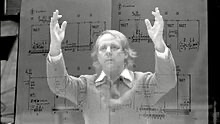
Multiple Exposures can be more than two images. Often used to create artistic visual effect and has been used in some photographic hoaxes involving ghostly figures.
Overlaying
Photographing multiple exposures is a lot easier now with digital cameras and software like Photoshop. Some cameras can capture double or multiple exposures in camera. Mine can’t, so I have used a process called overlaying through Photoshop.
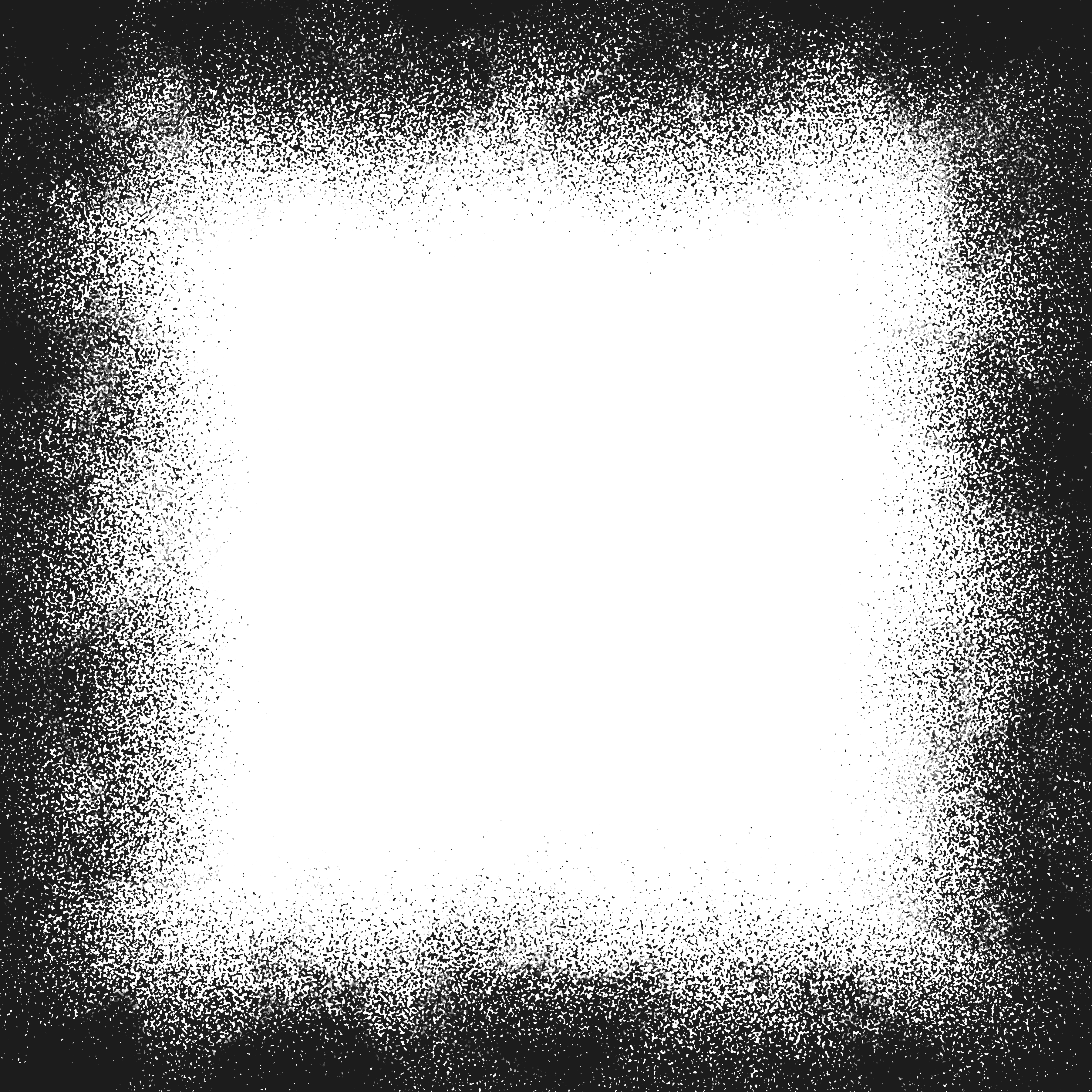
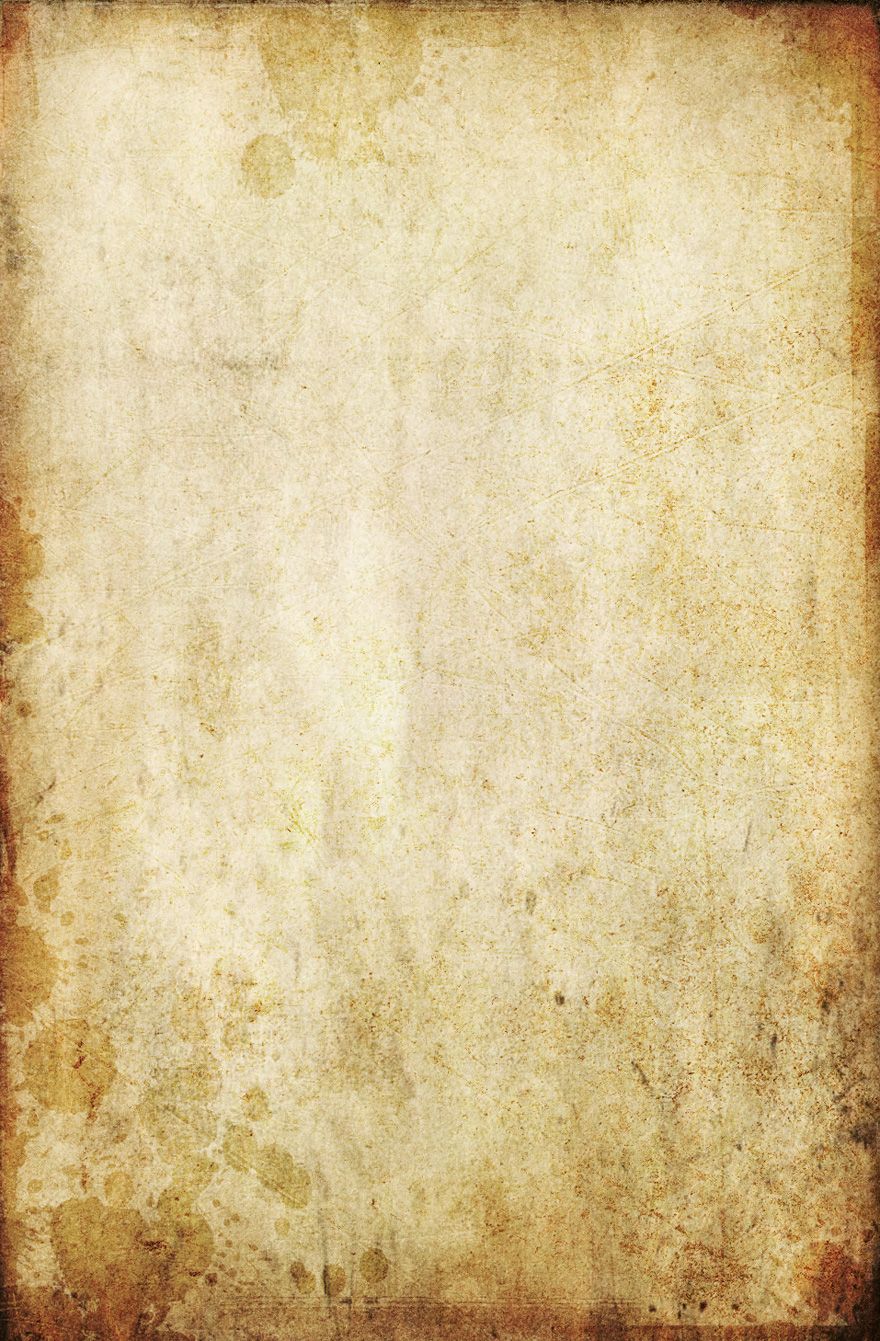
To start trying out this overlaying process I decided to begin with overlaying textures. Below are a selection of textures I have found on the internet and saved onto my computer. With textures and different paper templates you can really create intersting images. For example. make your photographs appear old on old paper, scratched metal or even apply a frame.
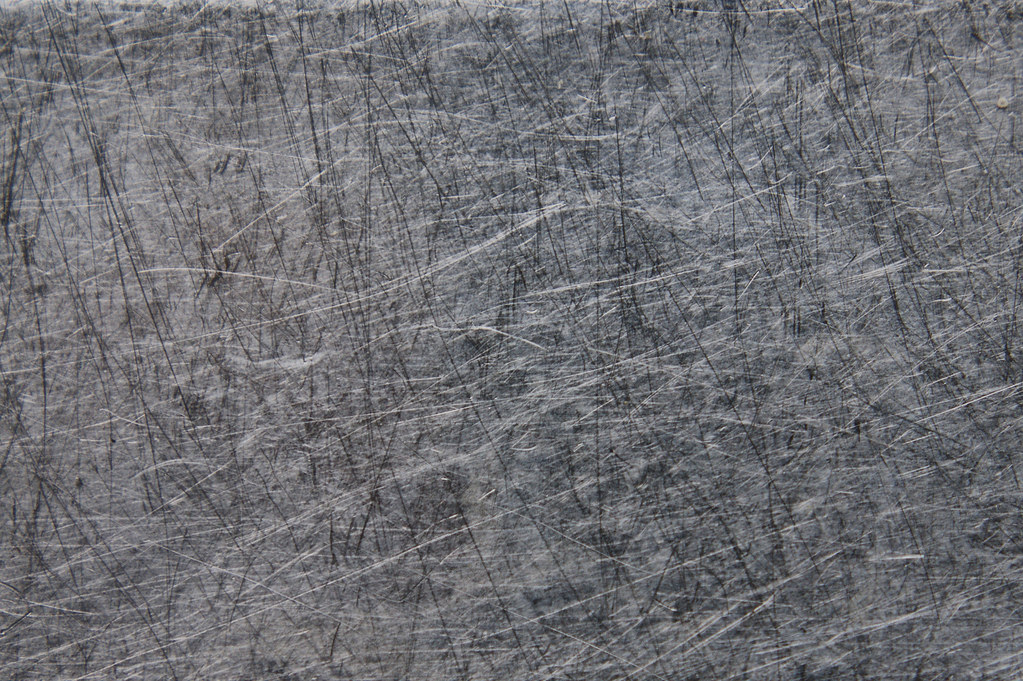
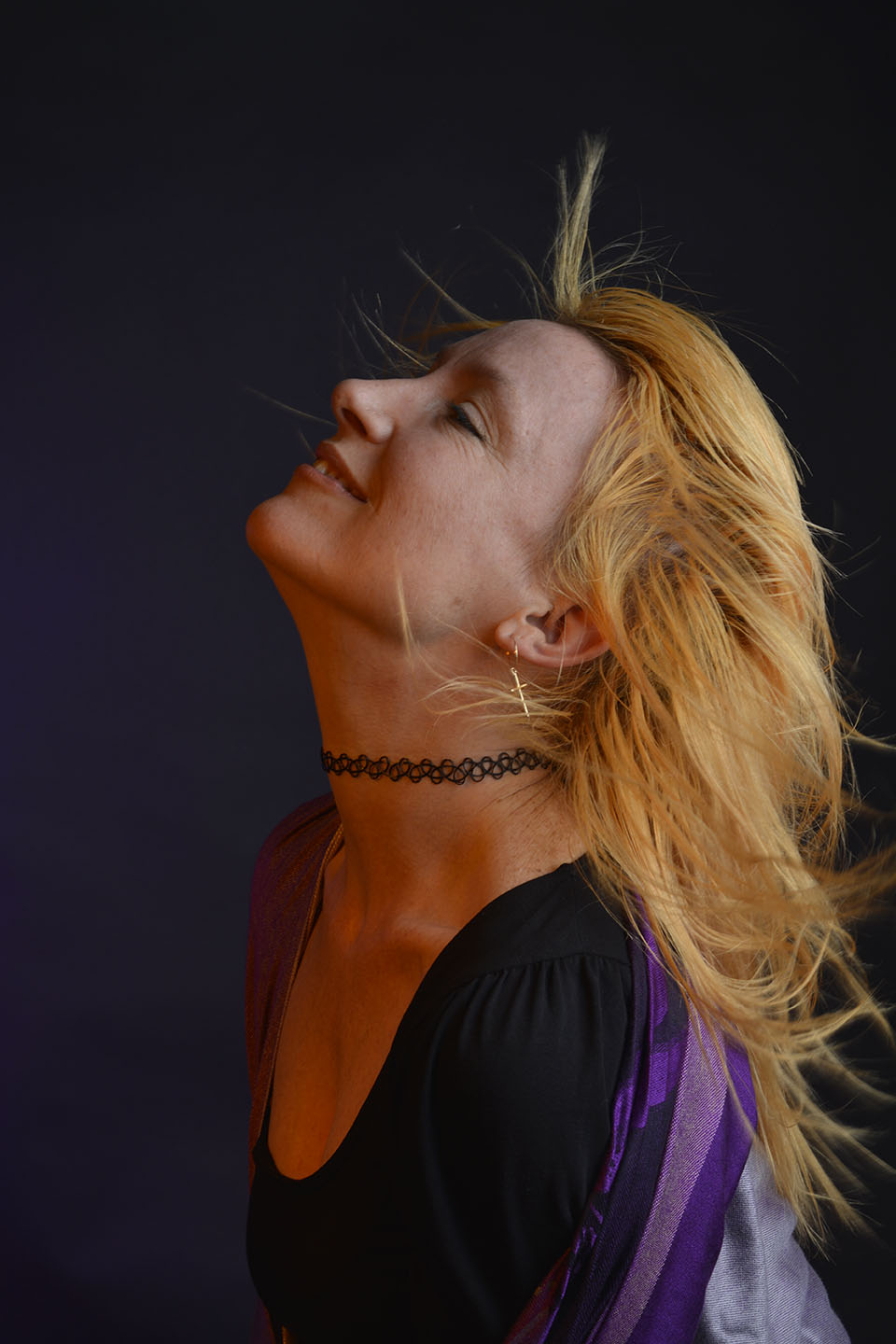
Below, I have taken one of my portraits (right), turned it into Black and White and then applied a scratched metal overlay (left).
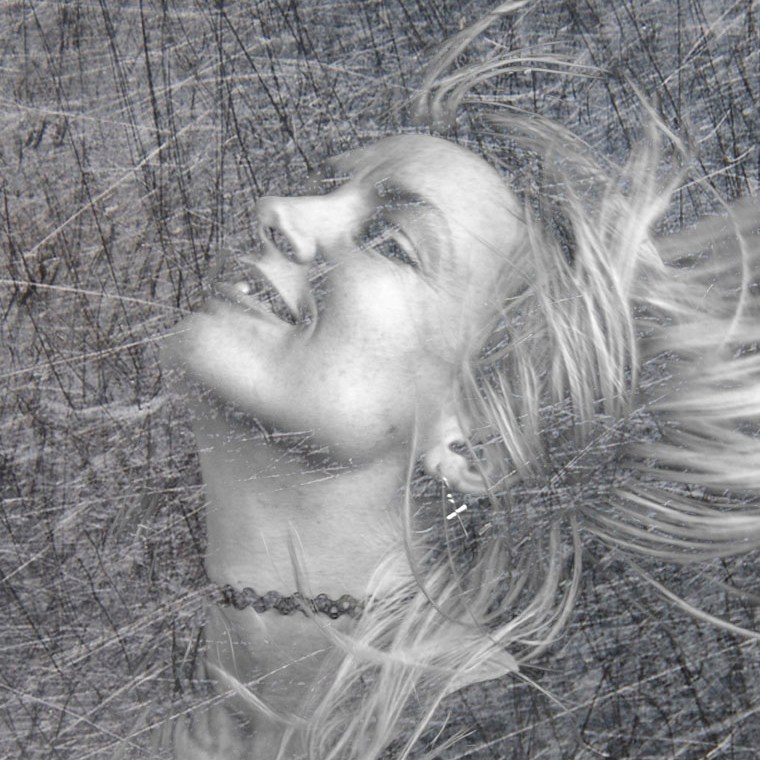
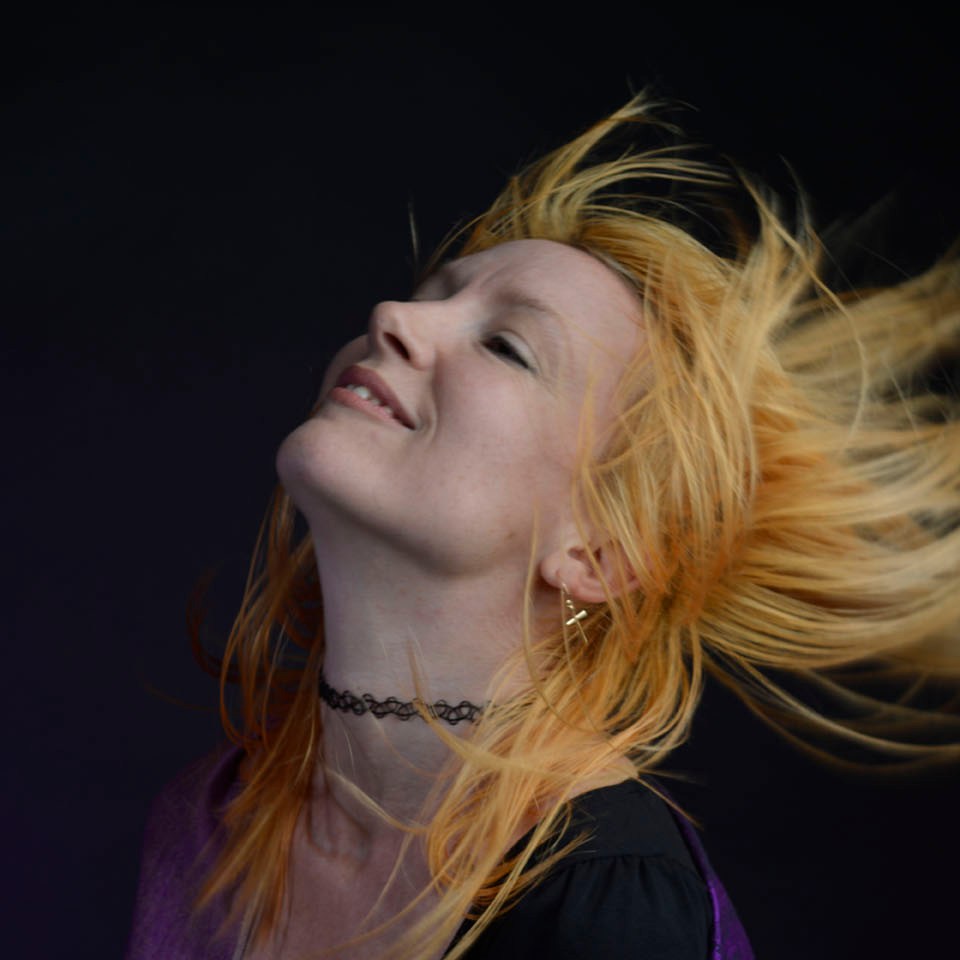
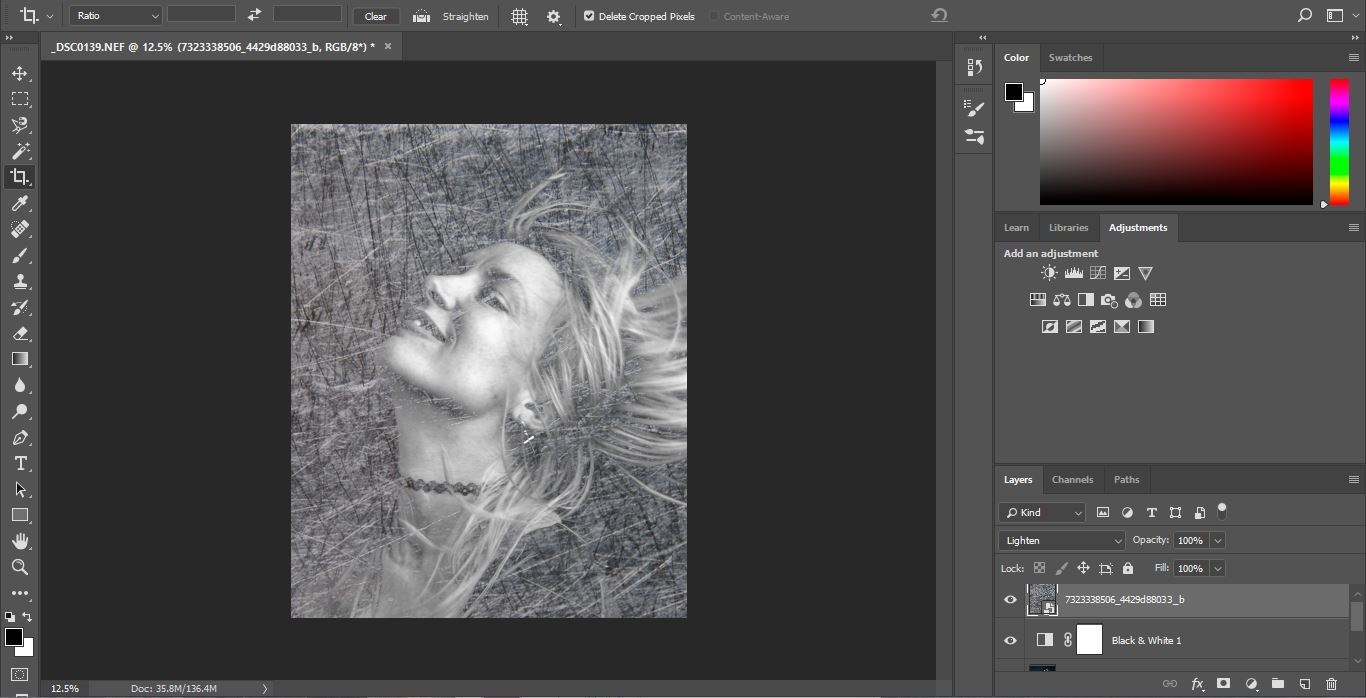
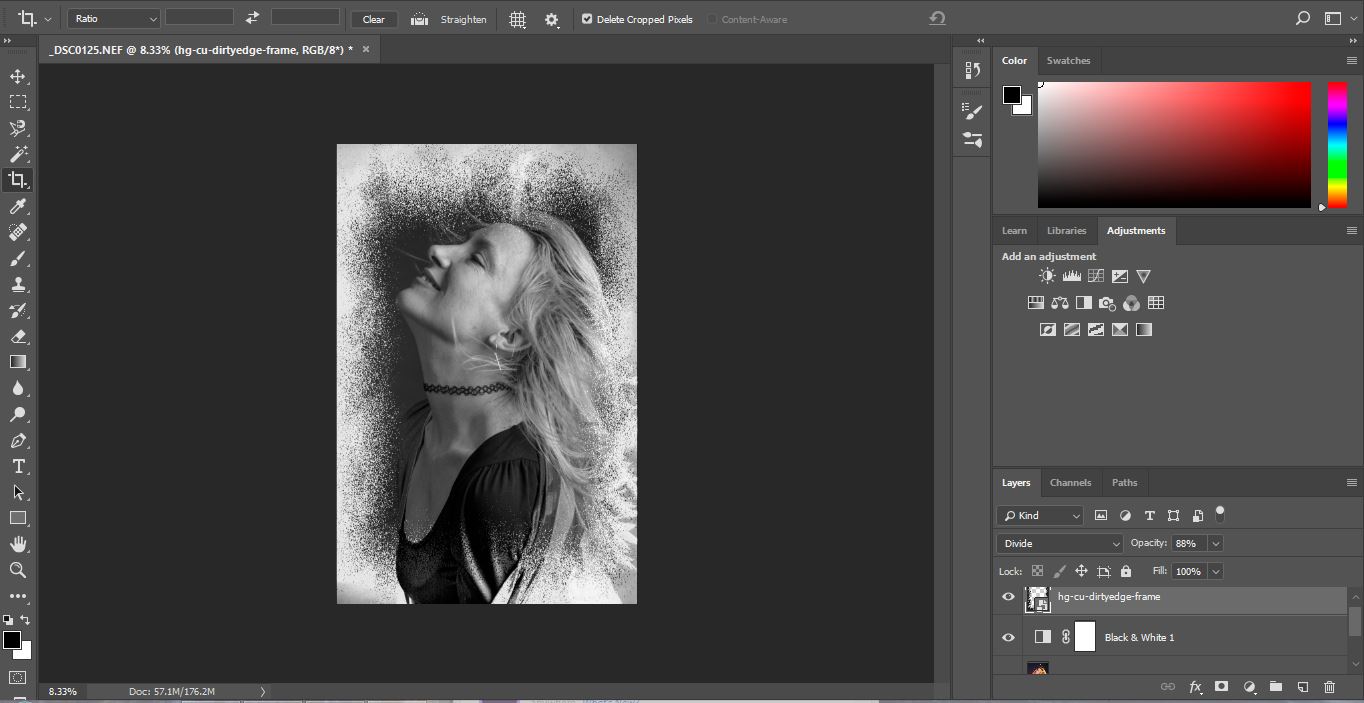
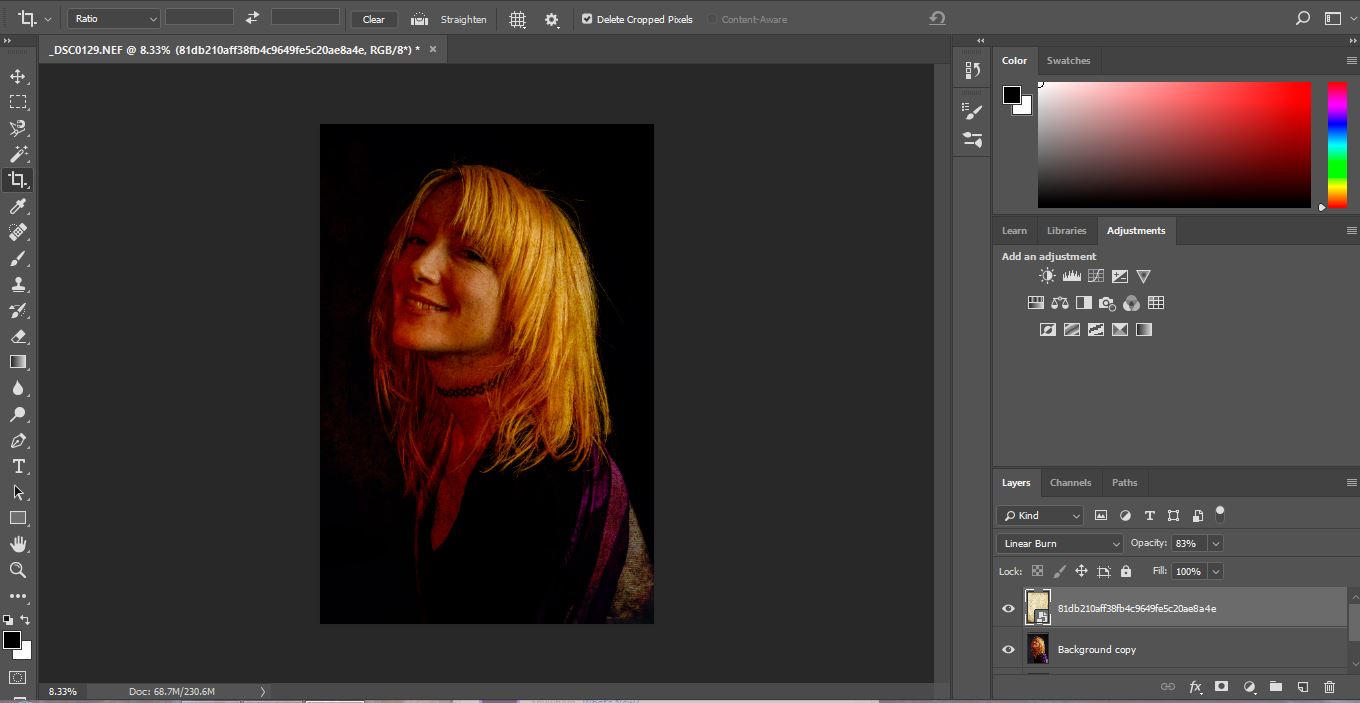
Changing the original image into Black and White gives a greater effect with the scratched metal. Below is a screenshot from Photoshop. With every image you work on in Photoshop, you want to always copy the background layer. This means that if you don’t like what you have changed you are able to to get back to your original image, as this remains unchanged as your background copy. Also, to preserve your original images, converting them into Smart objects will allow you to do non destructive editing.
The screen shot below
With the same image I have overplayed a frame. Again, converting the image into Black and White as this looked better. This frame I found on the internet, however you can easily create your own or a similar one within Photoshop. Using the Brush Tool, moving over the edges of a blank layer, the same effect can be achieved.
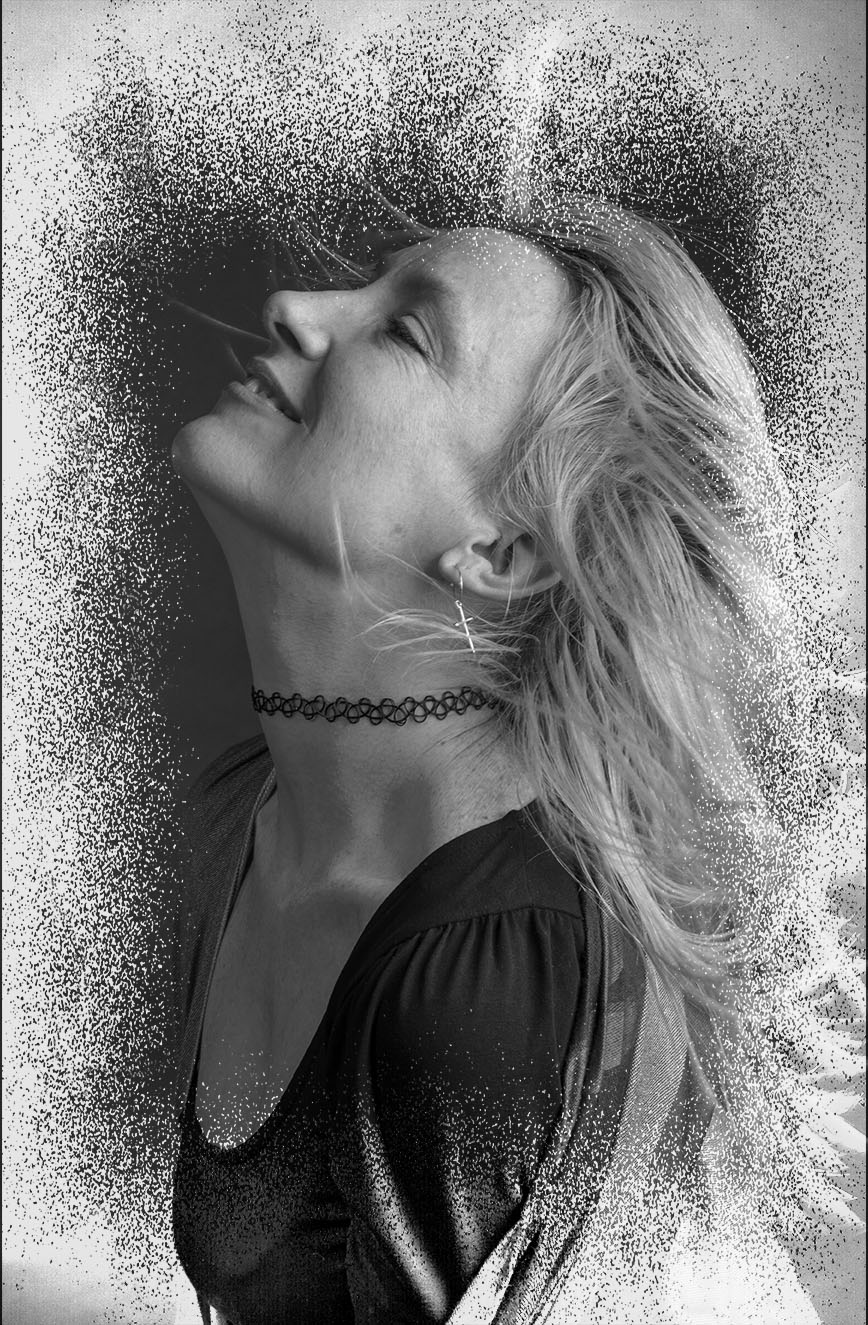
The original frame is black. When I placed it over the portrait image I scrolled through the blending modes. This tool gives slight changes in density, tone and colour to the overplayed image allowing you to create your desired design. I felt with this image, choosing the Divided blending mode with 88% opacity it converted the frame to more negative colours and complimented my portrait.
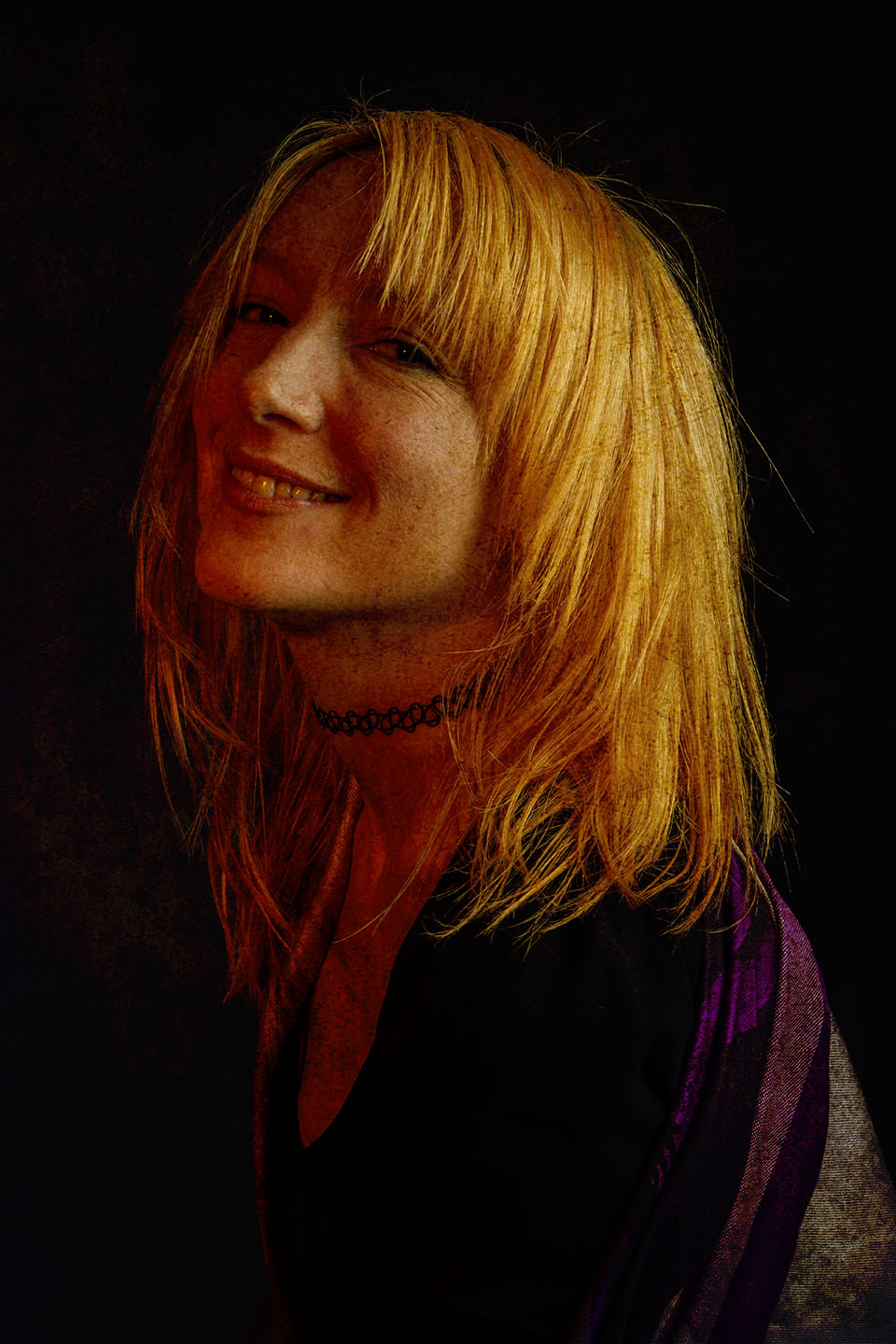
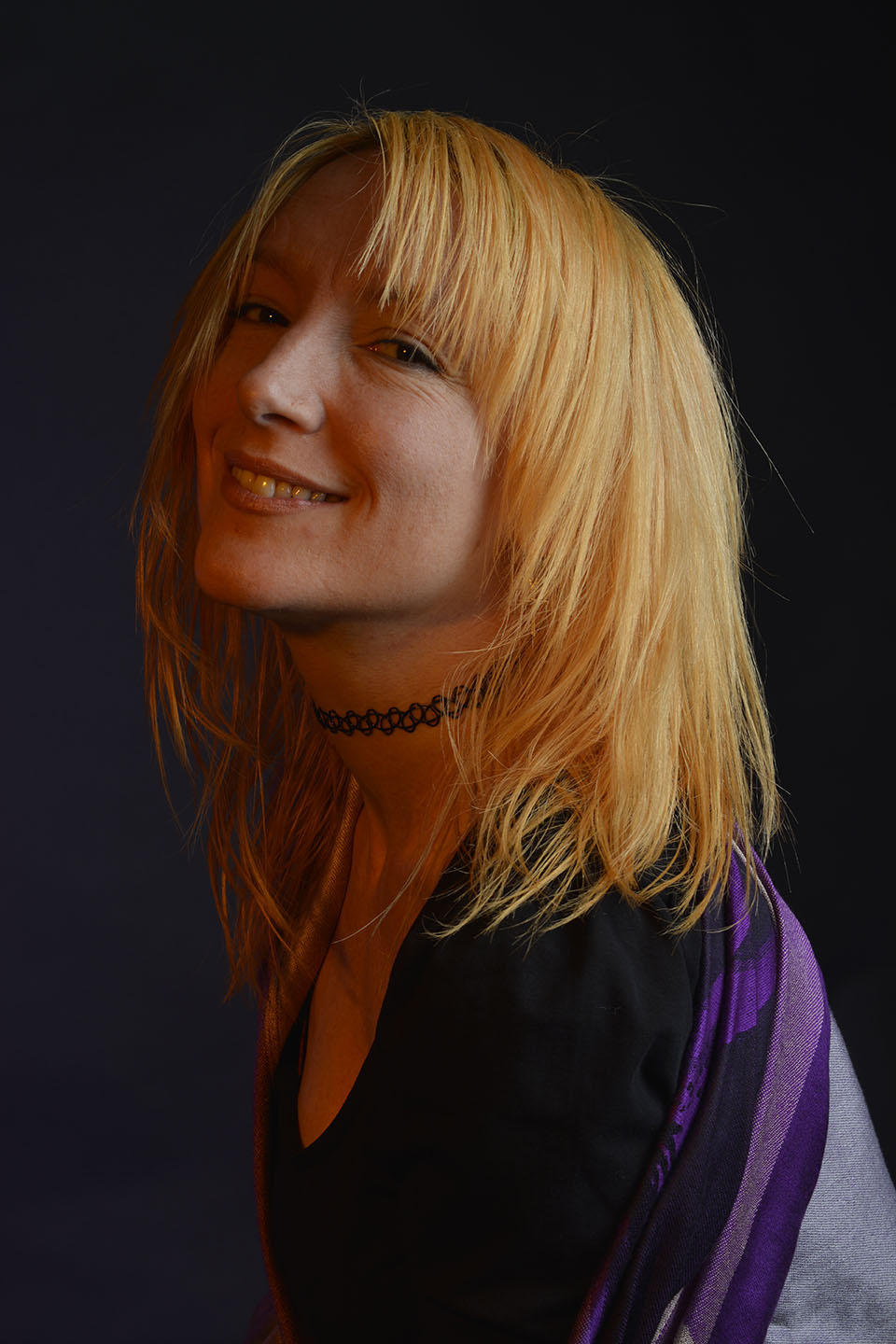
This Brown paper overlay below hasn’t quite worked in my opinion. With the portrait having an warm tinge to it from the orange filter when shooting, as the brown paper lays over it adds more warmth and doesn’t compliment the portrait.
However, it was good practice for me to look at the colours in a photograph, when looking for overlays.
Next, I wanted to try an exagerated example of overlaying. Instead of using frames or textures I wanted to merge two of my own images together.
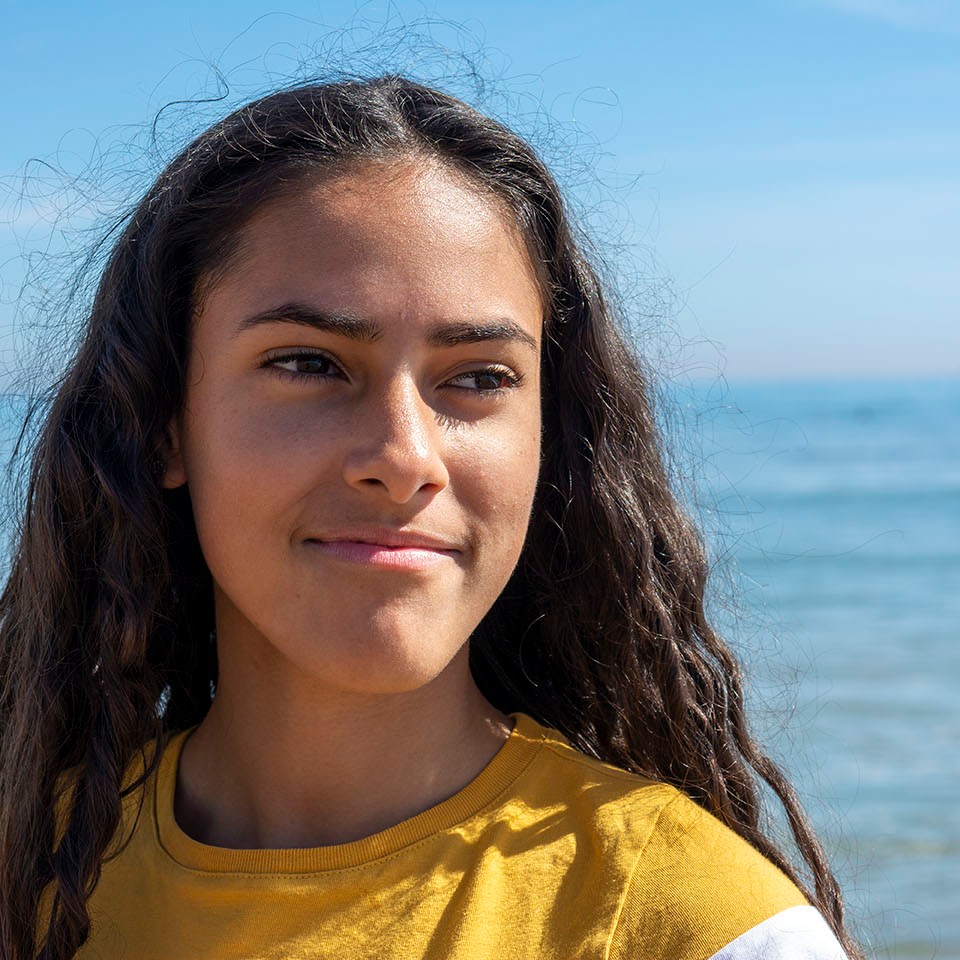
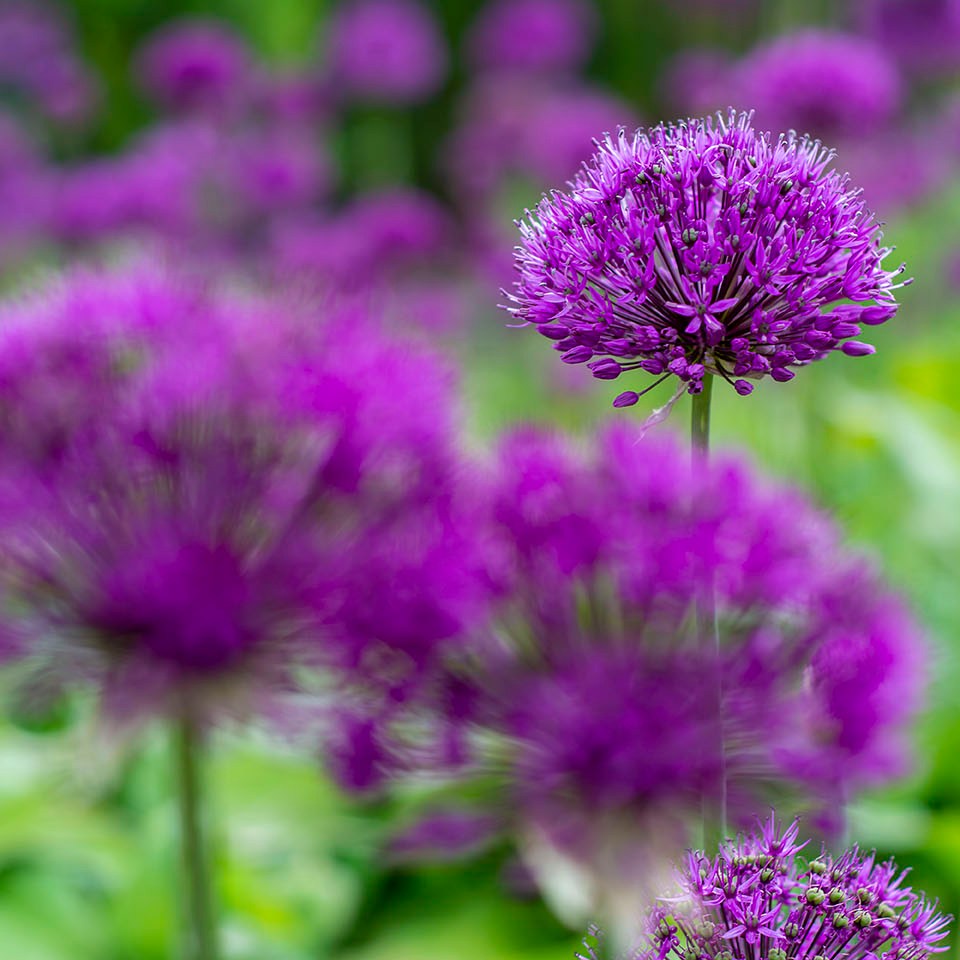
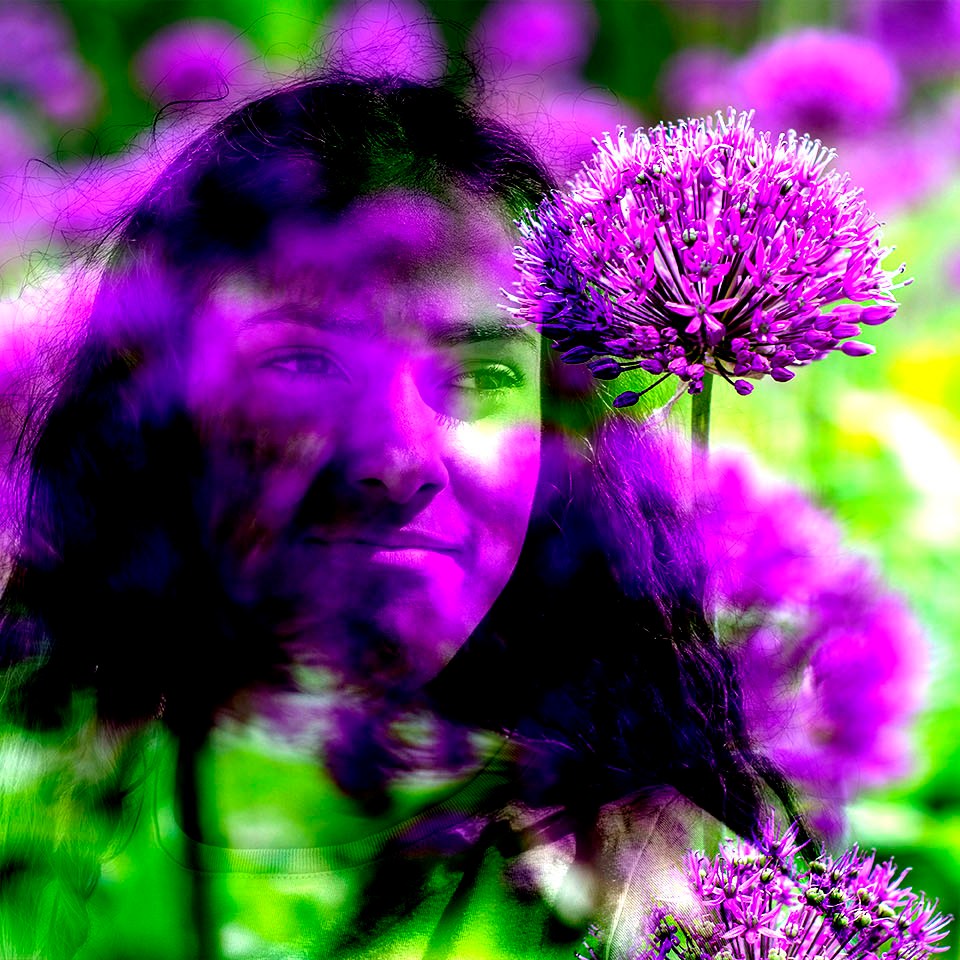
Then with the same portrait image I wanted to try a more subtle effect. To place the Poppies directly over the face area I had to stretch the Poppy image after placing over the portrait. Using a low opacity I have managed to keep the overlayed image to just showing over the face and not the water.
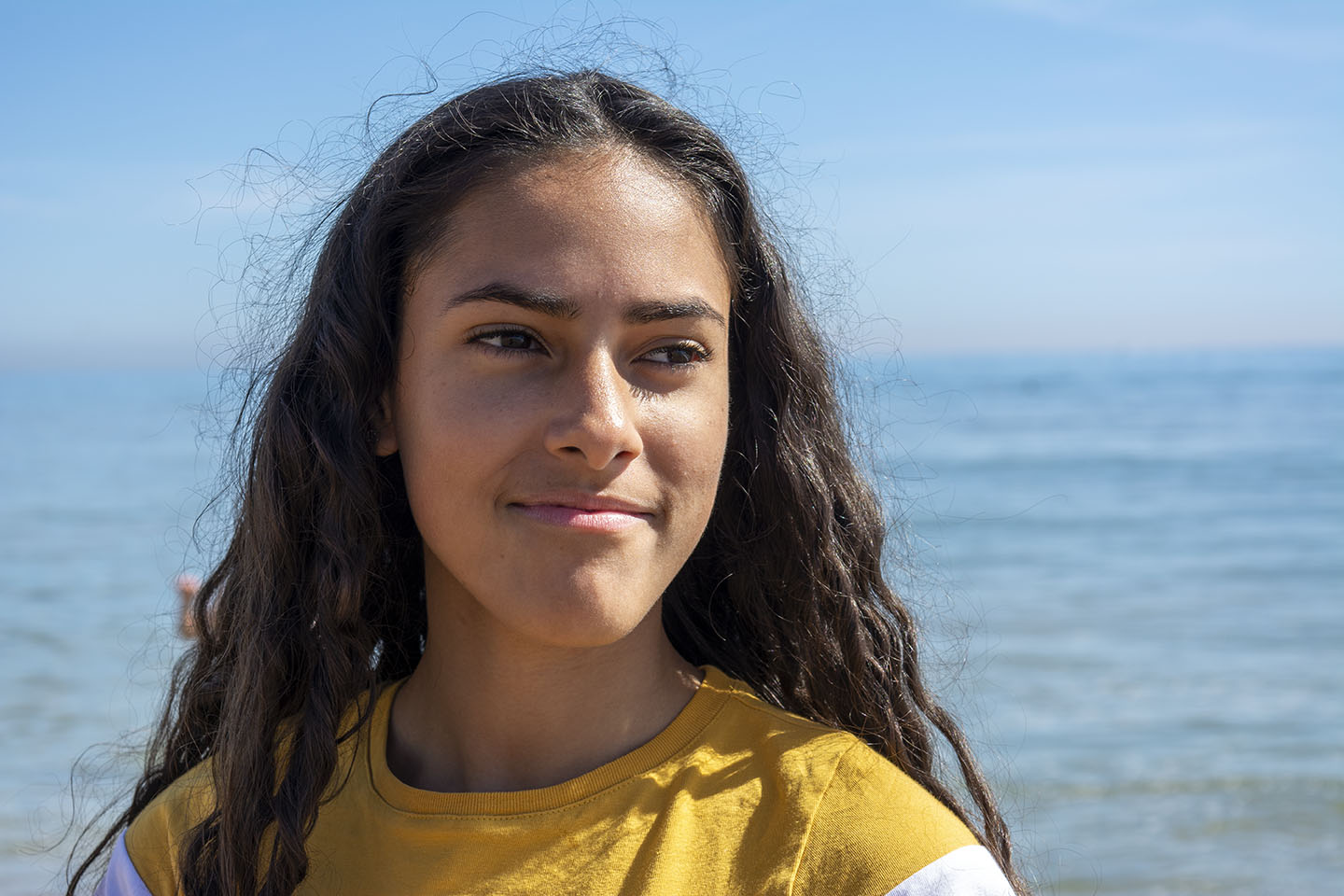
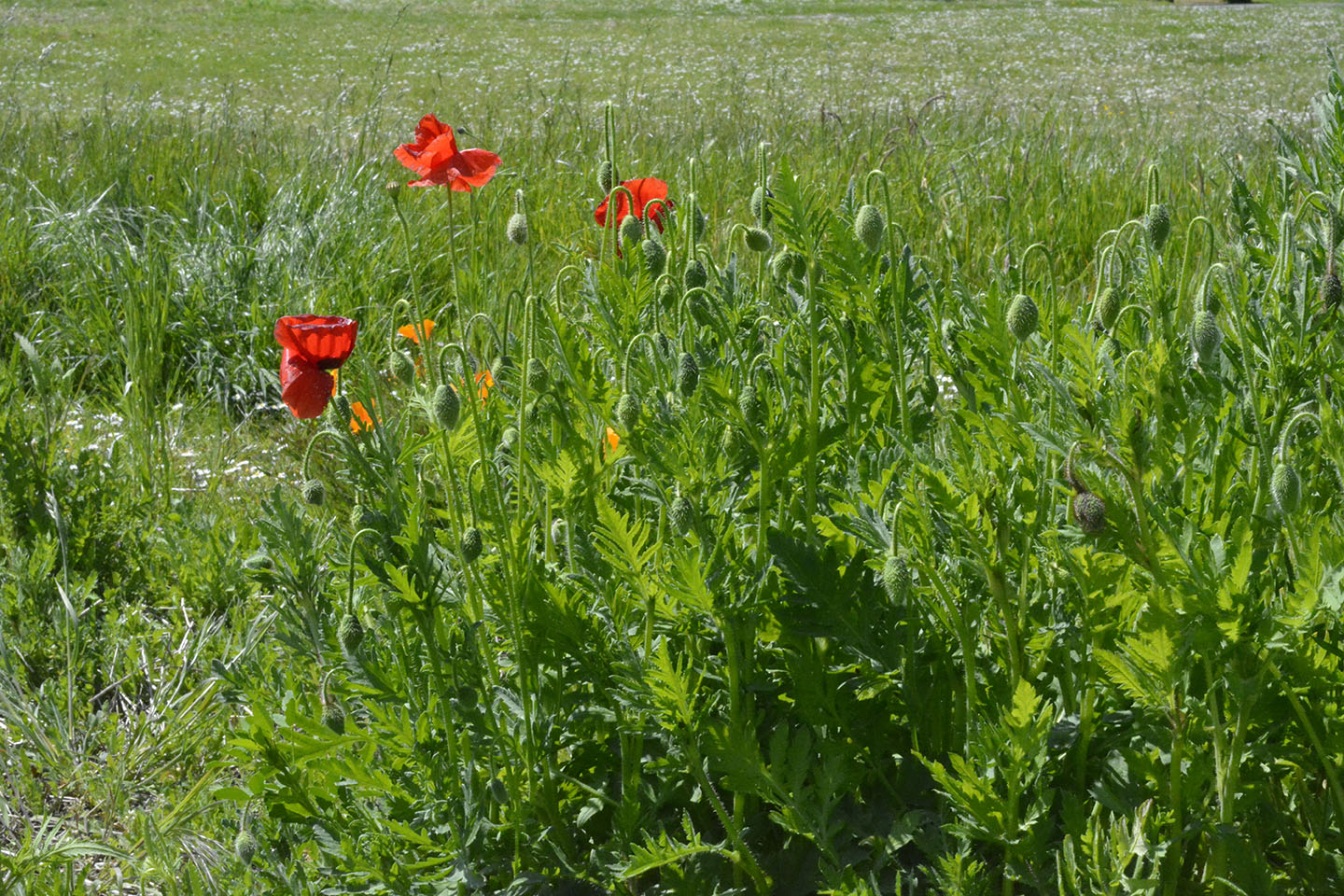
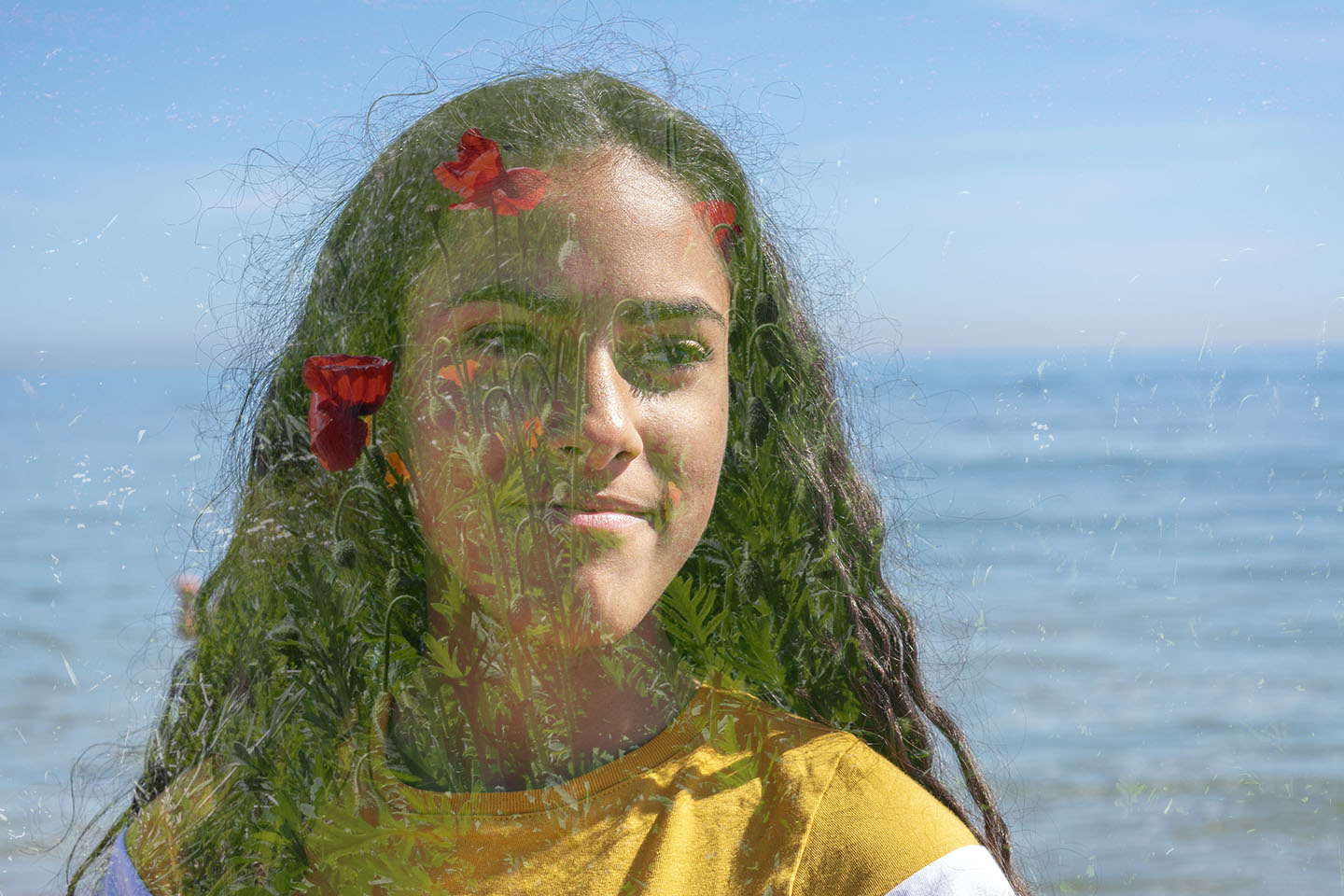
When I have researched overlaying images, I came across images using portraits and mountain or forest scenery. As I hadn’t got any images that I had taken of mountains etc, so I sourced an image from the internet.
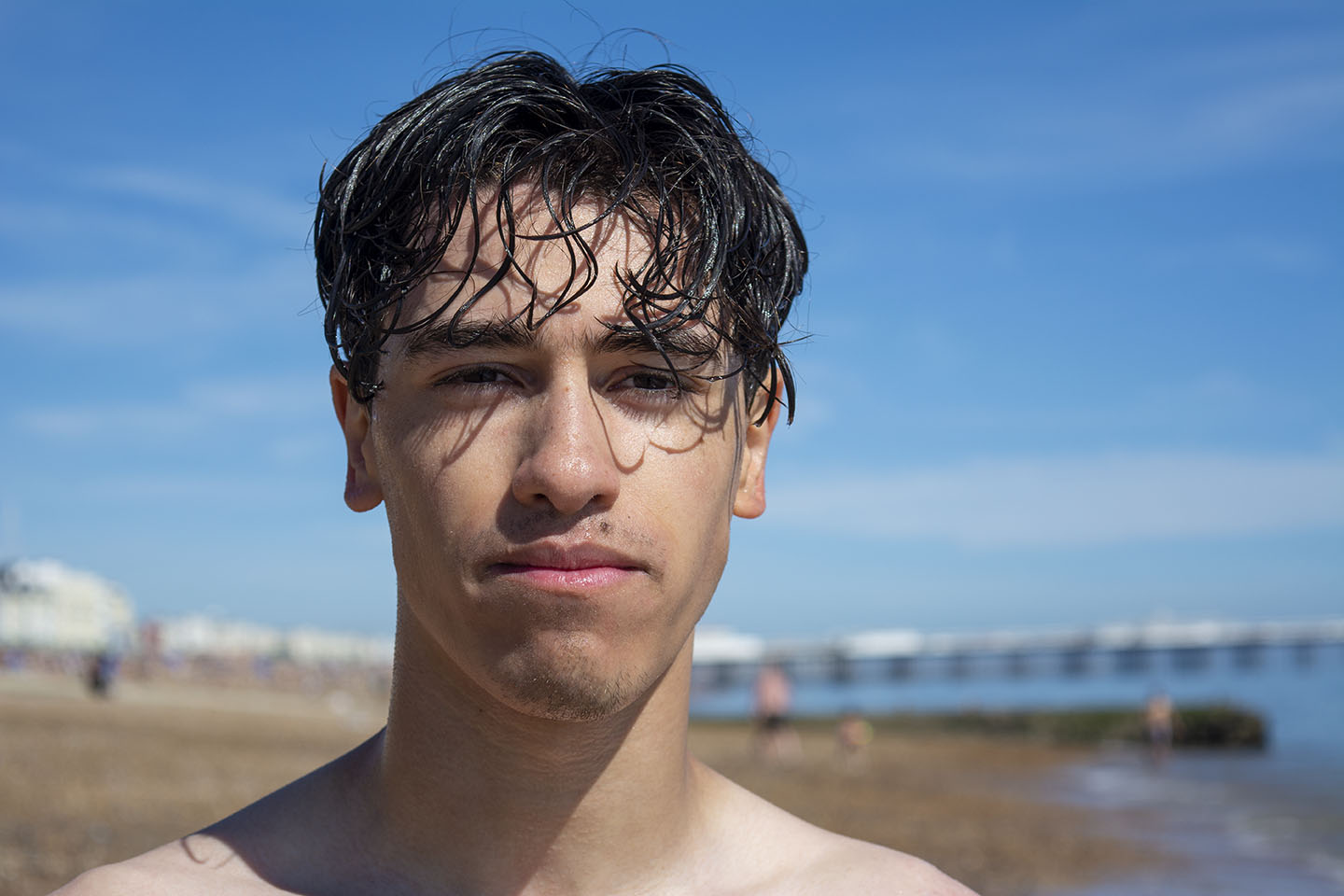
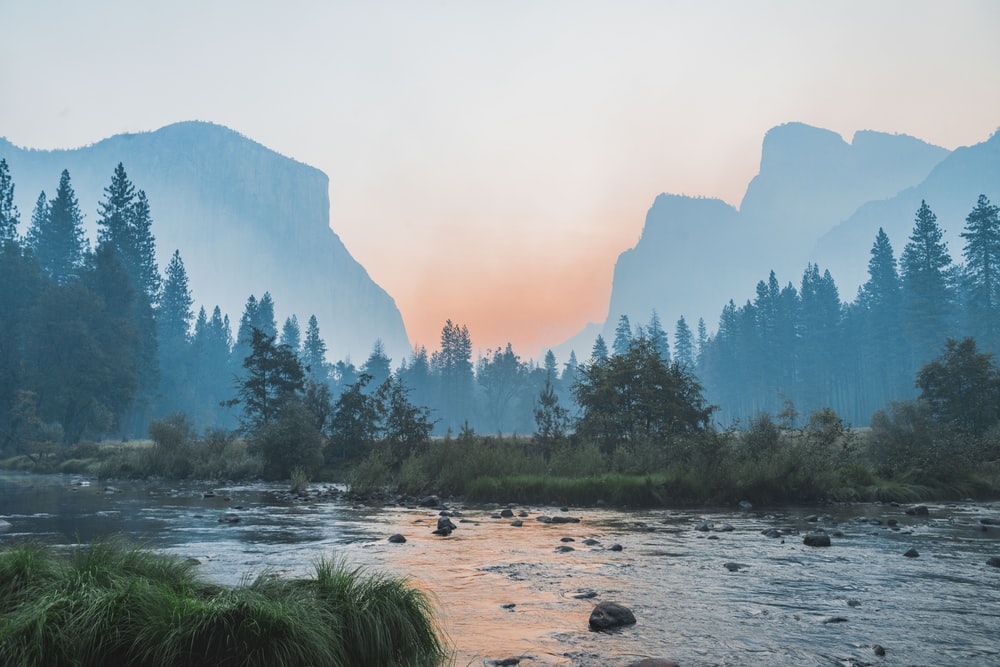
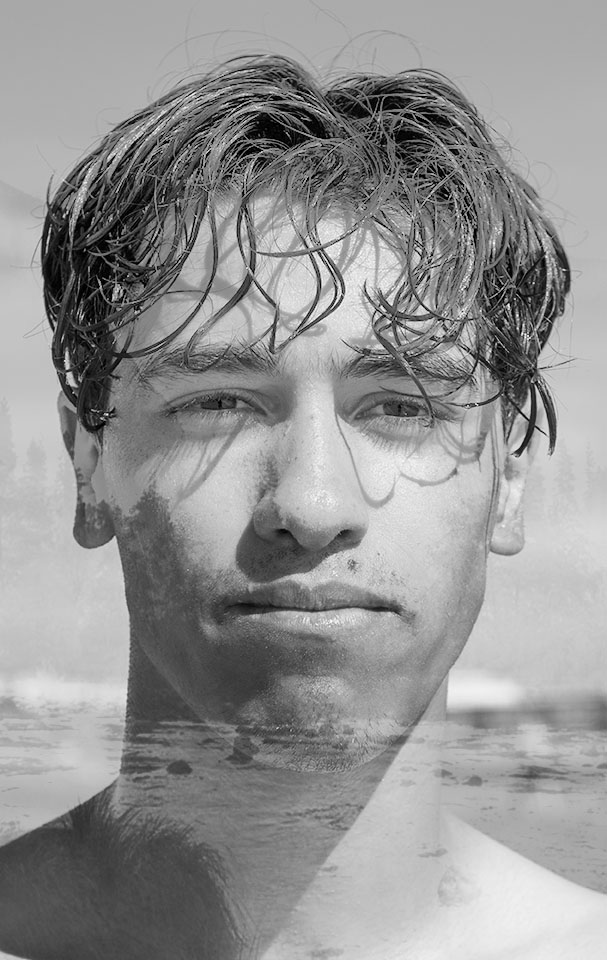
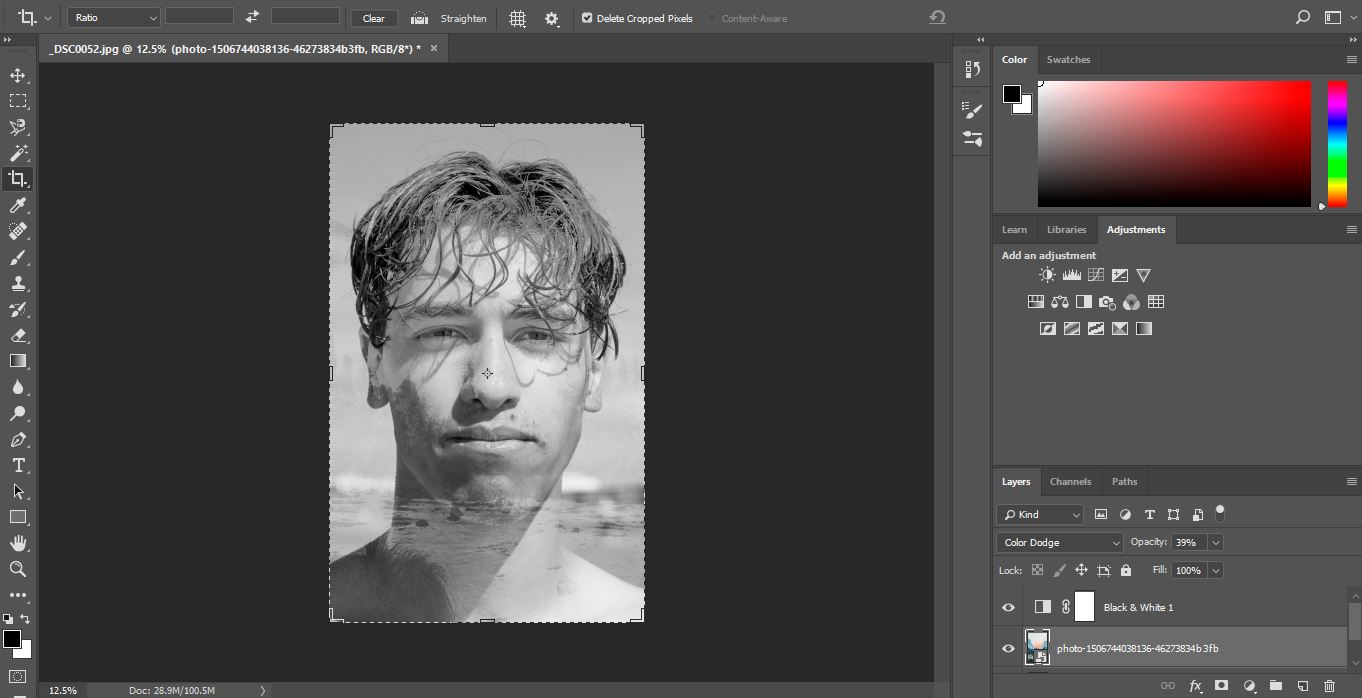
As my portrait image had background in it, I cropped the image to focus on the face. Changed the images into Black and White, then overlay and re-position. Colour Dodge blening mode with 39% opacity was used.
 My Photography Journey